
Crimson Moon PC setup and controls
Keyboard, mouse, settings, and performance tips for Gildenarch.
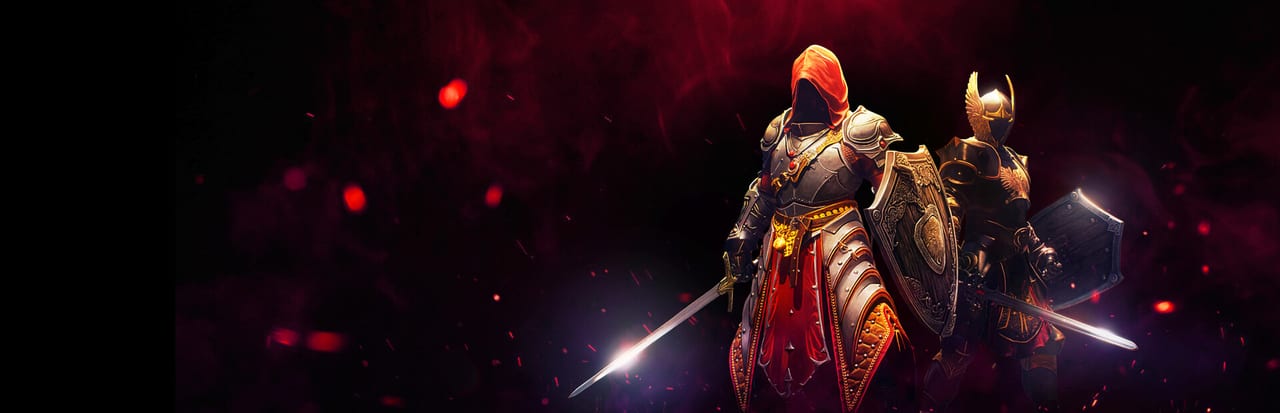
Setting up Crimson Moon on PC means understanding the keyboard and mouse layout, display options, and performance settings before you queue your first mission. This guide covers the input scheme, recommended graphical settings, and how to optimize for stable 60fps on mid-range hardware.
Keyboard Layout
Crimson Moon uses a standard WASD movement scheme with context-sensitive actions on the right side of the keyboard. The exact default bindings on PC are:
Movement
- W, A, S, D: Move in eight directions
- SHIFT: Sprint (consumes stamina)
- SPACE: Dodge roll (with direction input)
- CTRL: Block (hold to raise shield)
Combat
- Left Mouse Button: Light attack (chains into combos)
- Right Mouse Button: Heavy attack / Charged attack (hold)
- Q: Weapon Art (bound to current weapon’s special ability)
- E: Execute (available on staggered or low-health enemies)
- R: Use healing consumable
- F: Interact (doors, levers, NPCs, chests)
Nephilim Powers
- 1, 2, 3: Equip consumable slots
- 4: Angel Mode activation (when gauge is full)
- Mouse Wheel Up/Down: Cycle through active consumables
Interface
- TAB: Open inventory / loadout screen
- M: Map (mission area overview)
- I:打开物品栏
- ESC: Pause menu
- ENTER: Confirm / talk
These bindings are adjustable in the options menu. Rebinding does not reset between sessions.
Mouse and Camera
The camera uses right mouse button as a modifier for fine control during combat. Hold RMB to enter precision aim mode while blocking or using certain Weapon Arts. The camera sensitivity slider affects both horizontal and vertical look speed independently.
Mouse acceleration is disabled by default. Set your DPI to a comfortable level for 360-degree camera rotation without overshooting. A DPI between 800 and 1600 is common for this type of game.
Recommended Display Settings
The game ships with three graphical presets: Low, Medium, and High. Beyond presets, individual options let you tune specific systems.
Resolution Scale
Set this to 100% for native resolution. Lowering to 75% or 50% can stabilize framerate on weaker GPUs at the cost of image sharpness. The difference is most visible on particle effects and distant architecture.
Shadow Quality
Shadows are the biggest variance between presets. High delivers contact shadows under enemies and dynamic shadows from architecture. Medium reduces shadow draw distance but keeps the most important shadows. Low removes most dynamic shadows and uses pre-baked alternatives.
Texture Quality
Set to High if your GPU has 4GB of VRAM or more. Medium is playable on 2-3GB cards. Low reduces texture resolution noticeably but maintains frame stability.
Effects and Particles
Post-processing effects (bloom, chromatic aberration, vignette) add atmosphere but cost performance. Turn these off on mid-range hardware before reducing shadow or texture quality.
Performance Optimization Tips
Close background applications. Web browsers, Discord, and streaming software consume CPU resources that Crimson Moon needs for stable physics and AI.
Set Windows power plan to High Performance. This prevents the OS from throttling the CPU during demanding scenes.
Verify game files on Steam or Epic. Corrupted files can cause stutters that look like performance problems.
Use fullscreen exclusive mode. Borderless windowed saves some GPU work but introduces input lag. Exclusive fullscreen provides the lowest latency.
Cap your framerate. If you see sudden drops, a 60fps cap using your GPU control panel (NVIDIA Control Panel or AMD Radeon Software) reduces volatility.
Hardware Requirements Quick Reference
Minimum: GTX 1050 Ti or equivalent, 8GB RAM, Windows 10 64-bit, 30GB storage.
Recommended: GTX 1070 or RTX 2060, 16GB RAM, SSD storage, Windows 10 64-bit.
Optimal: RTX 3070 or better, 32GB RAM, NVMe SSD, Windows 11 for DirectStorage benefits.
The game supports AMD FidelityFX and NVIDIA DLSS where the hardware supports it. Check the launcher options for upscaling enable/disable toggles.
Controller Support
While this guide focuses on keyboard and mouse, Crimson Moon supports controllers fully. Xbox, PlayStation, and generic HID controllers work via DirectInput or XInput. The control scheme maps the same actions with analog sticks and face buttons.
If you use a controller, disable mouse in menus to prevent cursor drift.
Input Lag and Response
Crimson Moon is a Souls-inspired action game where input timing matters. Mouse polling rate affects how quickly your clicks register. A 1000Hz mouse polling rate (1ms response) is ideal but not required. 500Hz (2ms) is the practical minimum for responsive combat.
Enable V-Sync only if you experience tearing. Adaptive V-Sync is a good compromise. Full V-Sync adds input lag proportional to your framerate volatility.
Frequently Asked Questions
Q: Can I remap the dodge button to a keyboard key other than SPACE?
Yes. All bindings are customizable in the options menu. There is no restriction on which keys can be assigned to which actions.
Q: Does the game support hotkeys for switching weapons mid-mission?
No. Weapon switching happens at the loadout station before a mission starts. During a run you are locked into your equipped weapon.
Q: Is there a dedicated sprint button or does it use hold?
Sprint is a hold button (SHIFT by default) that drains stamina. Releasing SHIFT stops the sprint immediately.
Q: Can I use mouse and keyboard simultaneously?
Yes. You can bind actions to both and switch between them seamlessly. Many players use keyboard for movement and mouse for combat.
Q: Does the game have Aim Assist on PC with mouse?
No. Mouse and keyboard play does not include aim assist. Controller play uses the platform’s native assist systems where available.
Q: What should I set for best visual quality at 60fps on a mid-range GPU?
Drop shadows to Medium, set texture quality to High, turn off post-processing effects (bloom, vignette), and keep resolution at 100%. This gives a clean look with consistent performance on GTX 1070-class hardware.
Frequently Asked Questions
Quick answers before you enter Gildenarch.
What are the default keyboard controls in Crimson Moon?
WASD movement, LMB light attack, RMB heavy attack, Q weapon art, SPACE dodge, SHIFT sprint, E execute, R heal, F interact, TAB inventory, 4 Angel Mode.
Can I remap keyboard bindings?
Yes. All bindings are fully customizable in the options menu. Changes persist between sessions.
What PC specs do I need for Crimson Moon?
Minimum is GTX 1050 Ti with 8GB RAM. Recommended is GTX 1070 or RTX 2060 with 16GB RAM and an SSD.
Does Crimson Moon support controllers on PC?
Yes. Xbox, PlayStation, and generic HID controllers work via DirectInput or XInput. All actions map to analog sticks and face buttons.